Sign up in English. The event console is in Korean for now, and prices are in KRW.

Using LIVE TEXT

Live event Q&A, from audience phones to the screen

Collect audience questions by QR and put selected questions on the event screen. Use it for seminars, conferences, and panel discussions.

No signup needed. Demo messages are not sent to a real event.

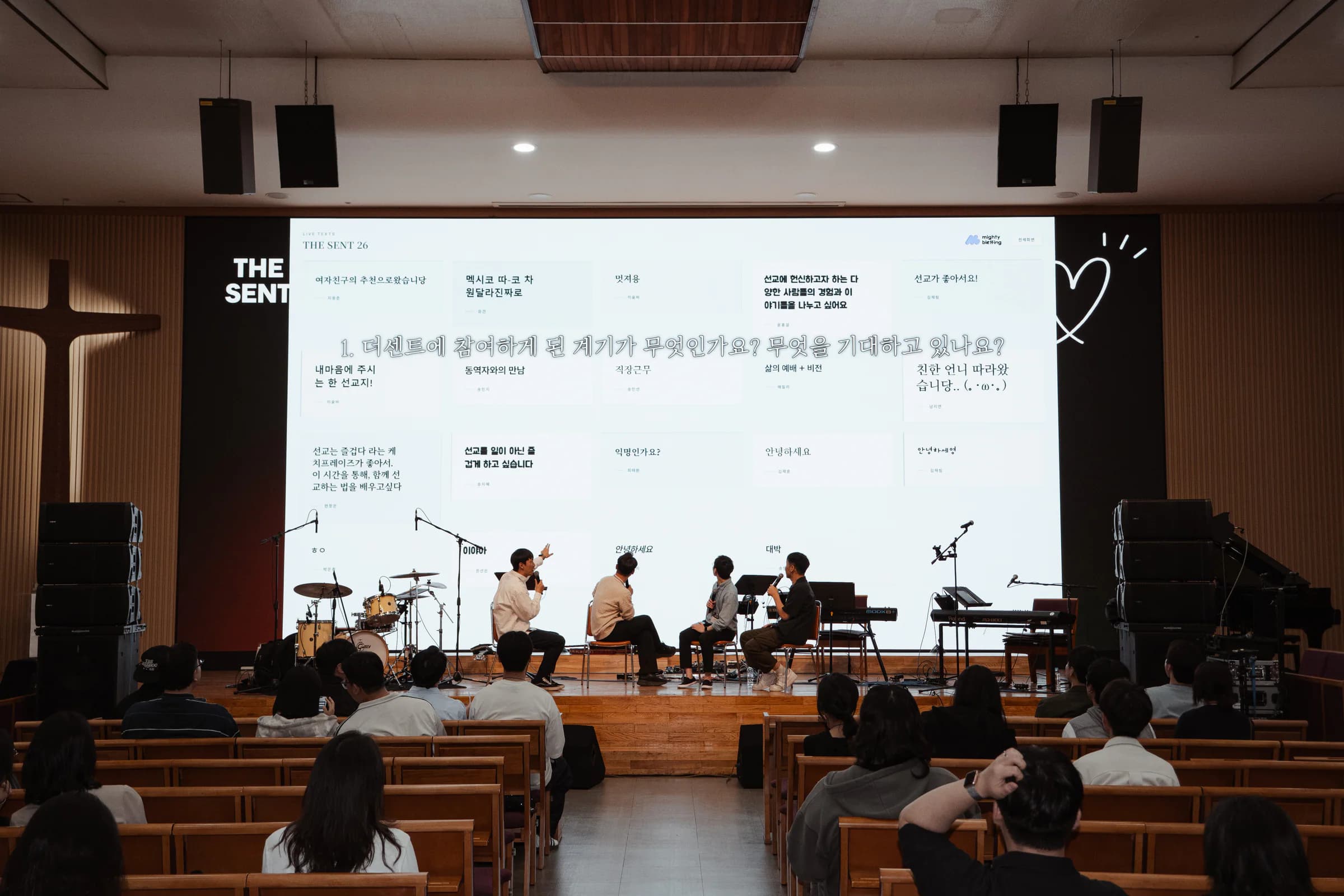
The full stage with audience question cards at THE SENT 26
THE SENT 26See event photos and records

From audience phones to the event screen

Guests send questions from their phones, and your team chooses what to cover next. The host reads questions on a dedicated screen while selected questions appear for the audience. The example shows message submission, review, and display.
Try the message demo
Guests send messages by QR, your team approves them, and they appear on the event screen

See how it worked at real events

Photos and records from events that used LIVE TEXT. Event sizes refer to total attendance.
The full stage with audience question cards at THE SENT 26
THE SENT 26See event photos and records

Audience questions collected by QR, with selected questions on the big screen.

THE SENT 26 collected audience questions and messages over two days, with around 200 attendees. The team selected questions for the big screen, and the host and panel answered them.
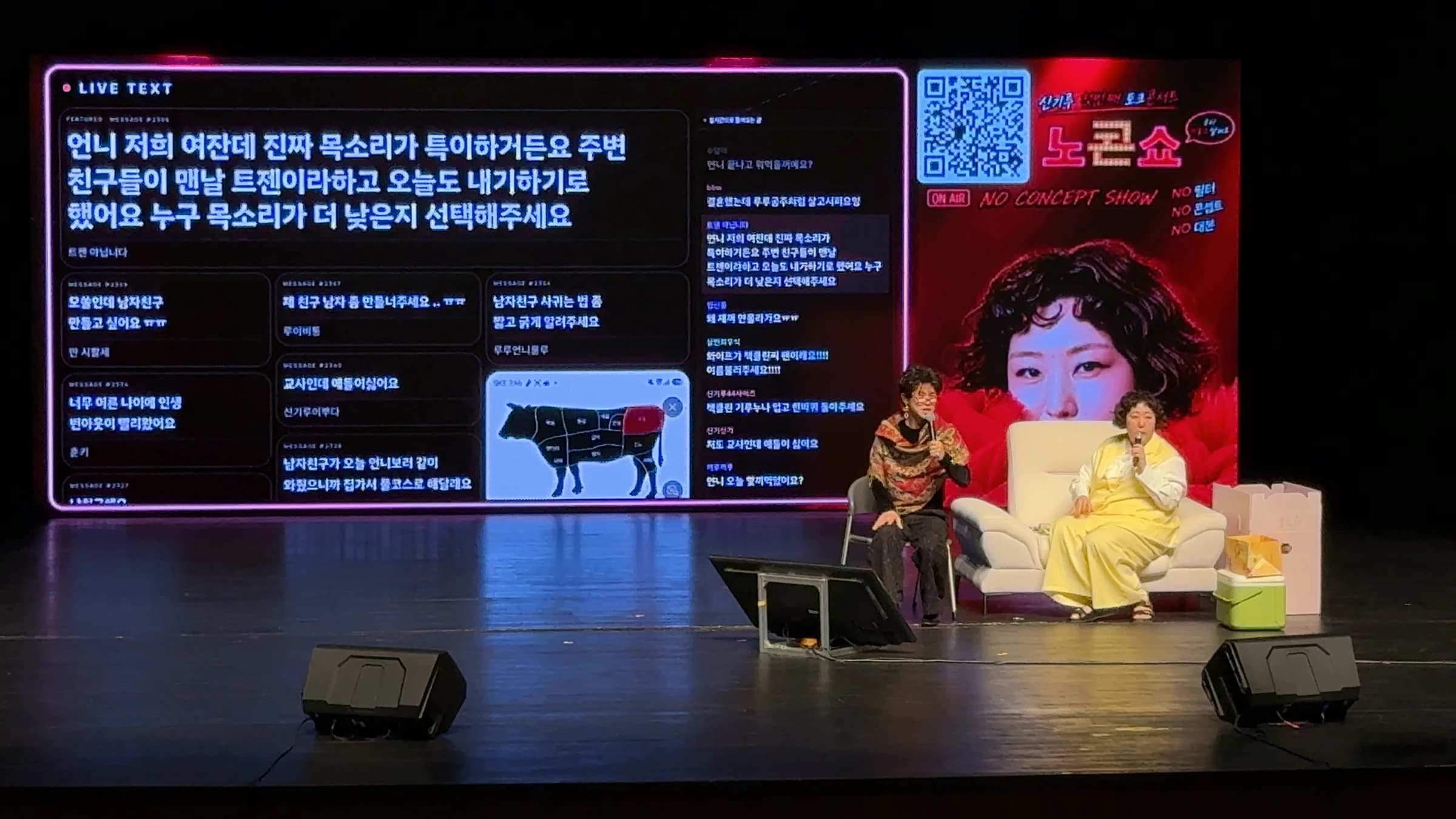
Two performers beside an LED screen highlighting an audience message at the Jeonju Nocon Show
Shin Gi-ru’s Nocon Show · Seoul & JeonjuSee event photos and records

Audience messages became part of the show.

At Shin Gi-ru’s Nocon Show in Seoul and Jeonju, we collected audience messages by QR, put them on the stage screen, and ran the live interaction on site. The Seoul show drew 1,000 people to Daeyang Hall at Sejong University, and the Jeonju show drew 500 to Yeongsan Hall at the Samsung Cultural Center, Jeonbuk National University. Several messages appeared at once, and selected ones were shown larger.

What to prepare and how to run it

Text questions are available from Basic. Photo submissions require Pro or Custom. Compare plans and features

Prepare the QR code and instructions before opening questions

Create an event and add its QR code to a slide or printed handout. Guests can send questions in a browser without installing an app or creating an account. For a panel, add an instruction such as “Start with who your question is for.” Agree with the host on when to open and close question collection.

Assign question review and hosting to clear roles

An operator checks for personal information, off-topic content, and repeated questions. Use manual approval when questions need review before going public. Even with the AI filter on, assign someone to decide whether each question fits the event. The host chooses the next question based on the conversation and remaining time.

Separate the host screen from the audience screen

The host screen helps the presenter review questions; the event screen is for the audience. Connect the event screen to the venue equipment and make sure internal notes or moderation controls are not visible. Rehearse when the operator should show and remove a selected question so the team can adapt during the event.

Explain which questions can be covered before the session ends

When closing question collection, have the host explain how much time remains for answers. The organizer decides whether to follow up on unanswered questions. If you plan to share questions or use them in later materials, tell participants before collecting them. The service does not answer every question or send follow-up messages on your behalf.

What to check in rehearsal

  • Scan the QR code on a phone, submit a question, and confirm it arrives in the moderation panel.
  • When using review before display, confirm that unapproved questions do not appear on the audience screen.
  • Practice passing a question to the host, displaying it, and removing it.
  • Check the screen ratio and readability from the back of the room when switching from slides to questions.

Questions before you start

No. Guests open the QR code or participation link and submit questions in their browser. The person creating and operating the event needs an event owner account.

Try it as a guest and an operator

Try submitting, approving, and displaying messages without signing up, or create an event to prepare your screen.

Need a custom screen or on-site support? Discuss the scope for your event with our team. Contact us about Custom

An event message wall for your audience’s words and photos